

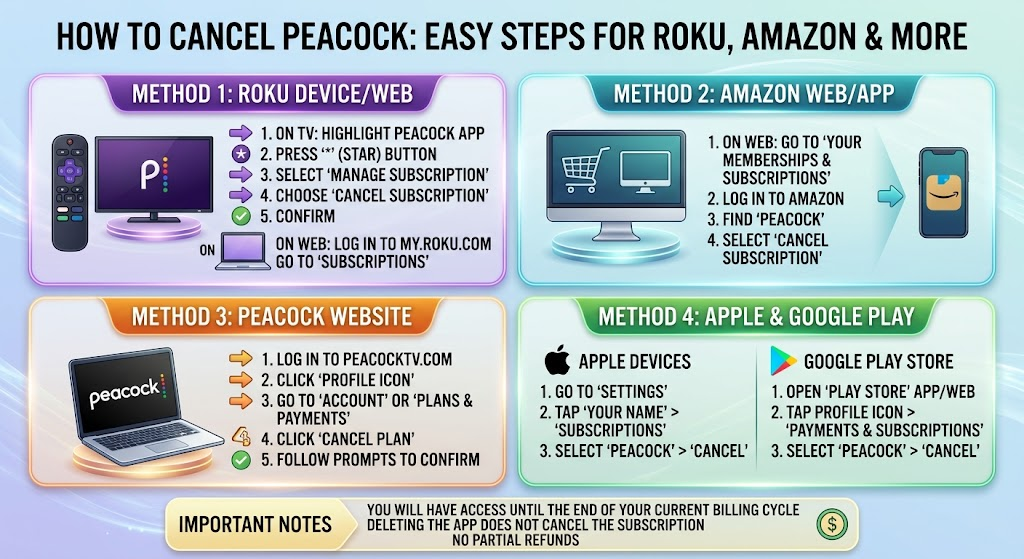
If you no longer watch Peacock, canceling your plan can save you money. The process is usually quick and simple. However, the steps depend on where you started your subscription. You may have signed up through Peacock, Roku, Amazon, Apple, or another provider. This guide explains how to cancel Peacock without confusion. You will also learn what happens after cancellation. We cover renewal dates, billing, refunds, and account access. Each section uses simple steps that are easy to follow. You do not need technical skills to complete the process. Before canceling, check your next billing date. This helps you avoid another charge. Also, make sure you cancel through the company handling your billing. Removing the app does not cancel your subscription. You must turn off the recurring payment separately.
How to Cancel Peacock Subscription
The easiest way to cancel Peacock is through the website. First, sign in to your Peacock account. Use the same account that receives your subscription bills. Open your account settings and find your subscription information. Look for an option related to changing or canceling your plan. Follow the instructions shown on the screen. Peacock may ask why you are leaving. Choose an answer and continue through the cancellation process. Keep following the prompts until cancellation is confirmed. Do not close the page too early. You should see a confirmation message when the process finishes. It is also smart to check your email afterward. A confirmation email can help prove that you canceled successfully. Your account may remain active until the current billing period ends. This means cancellation does not always remove access immediately.
How to Cancel Peacock on Roku
If you subscribed through Roku, your cancellation process can be different. Roku may handle your subscription billing instead of Peacock directly. Start by signing in to your Roku account. Find your subscriptions or manage-subscriptions section. Look for Peacock in your active subscription list. Select the subscription and choose the cancellation option. Continue through the confirmation screens until the cancellation is complete. You can also manage some Roku subscriptions from your Roku device. Highlight Peacock and check its subscription options. The exact menu can vary by Roku model and software version. Remember that deleting the Peacock channel does not automatically stop billing. You must cancel the recurring subscription. After canceling, check your Roku account for confirmation. Your Peacock access may continue until your paid period ends. This is normal and does not mean the cancellation failed.
How to Cancel Peacock on Amazon
Amazon can also manage Peacock subscriptions for customers who signed up through its services. If Amazon handles your billing, cancel through your Amazon account. Sign in and open the area where your memberships and subscriptions are managed. Find Peacock in your active subscriptions. Select the subscription and look for the cancellation controls. Follow the displayed instructions until Amazon confirms the change. The wording may differ depending on your Amazon account and subscription type. Always check which company appears on your payment statement. This can help identify the correct cancellation method. If Peacock does not appear inside your Peacock account, Amazon may be handling billing. Canceling through the correct provider prevents future renewal charges. Keep any cancellation confirmation for your records. Your Peacock service may continue until the current paid period expires.
How to Cancel Peacock Through a Web Browser
A web browser is often the simplest option for direct Peacock subscribers. Open the Peacock website and sign in to your account. Go to your account or subscription settings. Find your current plan and choose the cancellation option. Peacock will guide you through several confirmation screens. Read each screen carefully before continuing. Some services offer alternative plans before completing cancellation. You can decline those offers if you still want to leave. Make sure the final page confirms that recurring billing has stopped. Take a screenshot if you want an extra record. You can also save the cancellation email. This method works best when Peacock itself manages your payments. If another company bills you, the website may not show cancellation controls. In that case, use the billing provider instead.
How to Cancel Peacock on Your Phone
You can manage many subscriptions from a smartphone. However, your cancellation method depends on where you purchased the plan. Direct Peacock subscriptions usually require account management through Peacock. Subscriptions purchased through Apple or another platform may require that platform. Start by identifying the company that charges your payment method. Then open that company’s subscription management area. Find Peacock and select the cancellation option. Follow every confirmation step until you receive a final notice. Do not simply uninstall the Peacock app. Uninstalling an app only removes it from your device. It normally does not stop recurring charges. After cancellation, check your account again. Look for a message showing your renewal has been turned off. You can also review your payment statement later. This simple check can prevent unwanted surprises.
How to Check Who Bills Your Peacock Account
Finding your billing provider is an important cancellation step. Start by checking your recent payment statement. Look for the company listed beside the Peacock charge. The name can tell you where the subscription is managed. You should also check your Peacock account settings. Your account may display information about your subscription provider. If you used Roku, Amazon, Apple, or another service, check there too. This step can save time when cancellation buttons are missing. It also helps prevent canceling the wrong subscription. Some users have more than one streaming subscription. Therefore, checking the billing source is always useful. Once you identify the provider, use its subscription settings. Complete the cancellation and save the confirmation. This creates a clear record if a billing issue happens later.
What Happens After You Cancel Peacock?
Cancellation usually stops the next automatic renewal. It does not always end your current access immediately. If you already paid for the billing period, access may continue. The exact timing depends on your subscription and billing provider. Check your account for the date when access ends. You may continue watching Peacock until that date. After the paid period ends, your premium access should stop. Your account itself may still remain available. You can usually return later and choose a new plan. Cancellation also does not necessarily delete your account. If you want your account or personal information removed, that can be a separate process. Keep this difference in mind. Canceling a subscription and deleting an account are not always the same thing.
Can You Get a Peacock Refund After Cancellation?
Canceling a subscription does not automatically mean you receive a refund. Refund rules can depend on how you purchased the subscription. The company processing your payment may control refund requests. Check the applicable billing terms before expecting money back. If you were charged after attempting cancellation, review your confirmation. Make sure the cancellation actually completed before the renewal date. If the charge appears incorrect, contact the company that processed it. Explain when you canceled and provide your confirmation if available. Payment records can make the conversation easier. Avoid assuming that uninstalling the app stopped your subscription. It usually does not. The safest approach is to cancel early and keep written proof. This can help reduce billing problems later.
Why Peacock May Still Appear Active After Cancellation
Seeing Peacock listed as active after cancellation can be confusing. In many cases, this simply means your paid period has not ended. A canceled subscription can still provide access until its expiration date. Check your account for a future end date. Also review your email for cancellation confirmation. If your next renewal is disabled, the subscription should not renew normally. If you are still unsure, check the billing provider. Roku, Amazon, Apple, and Peacock can have different account screens. The important detail is whether automatic renewal is turned off. Do not cancel repeatedly without checking your account status. Multiple subscription records can make things more confusing. Instead, identify the billing source and confirm the renewal status.
How to Avoid Another Peacock Charge
The best way to avoid another charge is to cancel before renewal. Do not wait until the final few hours. Give yourself enough time to confirm the cancellation. After canceling, check your account status. Look for wording that indicates automatic renewal has stopped. Save the confirmation email or screenshot. You can also add the subscription end date to your calendar. This is useful if you plan to use Peacock until the paid period ends. Check your payment statement after the expected renewal date. If no new charge appears, the cancellation worked as expected. If a charge does appear, review your billing provider immediately. You may have another Peacock subscription under a different account. Checking your account details can help identify the problem quickly.
Does Deleting the Peacock App Cancel Your Subscription?
No, deleting the app normally does not cancel a paid subscription. The app and the subscription are two separate things. Removing Peacock from your television or phone only removes the software. Your recurring payment can remain active. You must cancel the subscription through the company handling billing. This could be Peacock or another subscription platform. After completing cancellation, you can delete the app if you want. Keeping the app installed does not normally restart a canceled subscription. The important action is turning off recurring billing. Always confirm your subscription status after making changes. This small step can prevent unwanted renewal charges. If you are unsure who bills you, check your payment history first.
What If You Cannot Find the Cancel Button?
A missing cancellation button usually has a simple explanation. You may not be signed into the correct account. You may also have subscribed through another company. First, check the email address linked to your Peacock account. Then review your payment history. Look for charges connected with Peacock. If Roku, Amazon, Apple, or another provider appears, manage the subscription there. You should also check whether you have multiple accounts. Signing into a different account can make the subscription appear missing. If none of these steps work, contact the appropriate customer support team. Have your account details and recent payment information ready. Avoid sharing sensitive payment information unnecessarily. A clear record of your billing provider will make support much easier.
A Quick Peacock Cancellation Checklist
Before you finish, use this simple checklist. First, identify who handles your Peacock billing. Next, sign in to the correct account. Find your active subscription and choose the cancellation option. Complete every confirmation step. Then check for a cancellation message or email. Write down your expected access end date. Keep your confirmation for future reference. If you subscribed through Roku or Amazon, confirm the cancellation there. Do not rely on deleting the Peacock app. Also, do not assume that stopping a payment method cancels the subscription. The safest method is always to cancel the subscription itself. Following these steps can make the process much easier. It also reduces the chance of unexpected renewal charges. If you later change your mind, you can usually subscribe again.
Final Thoughts
Learning how to cancel Peacock is easier once you know who handles your billing. Direct subscribers can usually manage their plan through Peacock. Roku and Amazon subscribers may need to cancel through those services. The most important step is confirming that automatic renewal has stopped. Remember that deleting the app does not normally cancel your subscription. Also, cancellation may not end access immediately. Your remaining paid period can continue until its scheduled end. Save your confirmation after completing the process. This gives you useful proof if a billing question appears later. If you want to return, you can usually restart a subscription in the future. Take a minute to check your billing provider before canceling. That simple step can save both time and frustration.
Peacock Subscription Details at a Glance
| Detail | Information |
| Service | Peacock |
| Main topic | How to cancel Peacock |
| Direct cancellation | Usually managed through your Peacock account |
| Roku billing | Manage through Roku when Roku handles billing |
| Amazon billing | Manage through Amazon when Amazon handles billing |
| App deletion | Does not normally cancel billing |
| Access after cancellation | May continue through the paid period |
| Refunds | Depend on the billing provider and applicable terms |
| Confirmation | Save the cancellation message or email |
| Best first step | Identify who is billing you |
Frequently Asked Questions
1. How do I cancel Peacock quickly?
Sign in to the account that manages your Peacock subscription. Open your subscription settings and select the cancellation option. Follow the confirmation steps completely. Save the final confirmation message or email. If you subscribed through Roku, Amazon, Apple, or another provider, cancel through that provider instead. The key is finding the company that handles your billing.
2. Can I cancel Peacock on Roku?
Yes, if Roku manages your Peacock subscription. Open your Roku account and find your active subscriptions. Select Peacock and choose the cancellation option. Complete the displayed steps and confirm the change. Deleting the Peacock channel is not enough. Always check that automatic renewal has been turned off.
3. How do I cancel Peacock on Amazon?
If Amazon manages your Peacock subscription, use your Amazon account. Open your subscription or membership management area. Find Peacock and select its cancellation option. Follow the instructions until the cancellation is confirmed. Your access may continue through the remaining paid period. Keep the confirmation for your records.
4. Does canceling Peacock delete my account?
No, cancellation and account deletion are different actions. Canceling normally stops future subscription renewals. Your Peacock account may still remain available afterward. You may be able to sign in and restart service later. If you want account deletion, look for a separate account or privacy process.
5. Can I keep watching Peacock after canceling?
In many cases, yes. If you already paid for the current period, your access may continue. Your exact end date depends on your subscription and billing provider. Check your account for the service expiration date. Losing access immediately is not always part of the cancellation process.
6. Why was I charged after canceling Peacock?
First, check whether the cancellation completed before the renewal date. Then confirm which company processed the charge. You may have another Peacock subscription under a different account. Review your cancellation confirmation and payment statement. If the charge seems incorrect, contact the company that processed the payment.
